
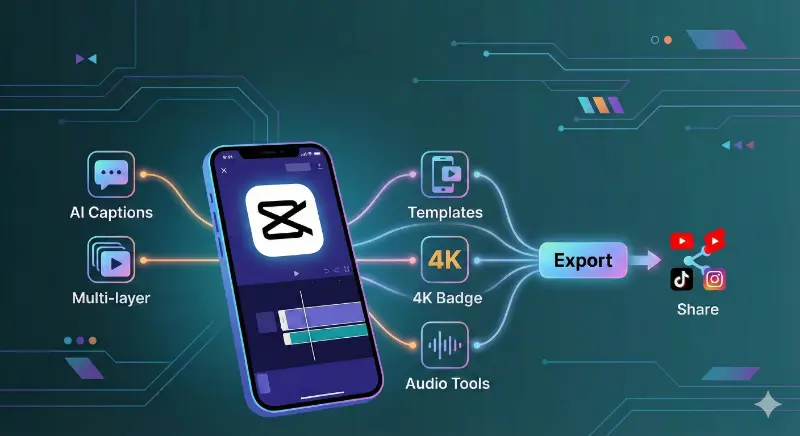
CapCut Features Explained How and When to Use AI Tools Templates and 4K Export

CapCut offers a wide range of features that make video editing simple for beginners and powerful enough for advanced creators. Many users see long feature lists online but still feel confused about when to use each tool and what actually works in real situations.
This page explains CapCut features in practical terms. Instead of repeating feature names, it focuses on how and when to use them for different types of content such as short videos, long videos, educational clips, and personal projects. It also explains which features work offline, which depend on internet access, and where limitations exist.
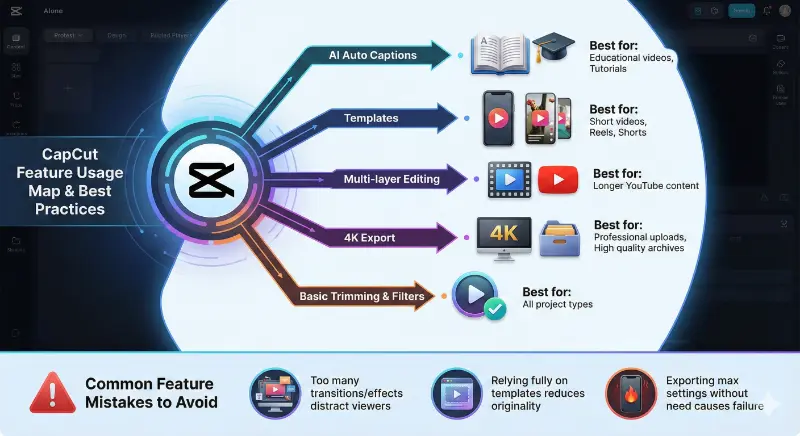
Quick CapCut Feature Map at a Glance
CapCut includes many tools, but each one works best in a specific situation.
Understanding this helps creators avoid overusing features that slow down editing or reduce quality.
AI Tools and AI Lab What They Do and Their Limits
CapCut includes several AI powered tools that are designed to save time. These tools are useful, but they are not perfect and should be used carefully. (https://www.capcut.com/)
What CapCut AI Tools Can Do
CapCut AI tools include background removal, auto captions, face tracking, smart effects, and AI styles. These tools are especially useful for quick edits and short videos.
Auto captions can generate subtitles automatically, which is helpful for social videos where many viewers watch without sound. Background removal can separate a subject from the background for portrait style videos. Smart effects apply motion and visual styles automatically.
These tools are designed to simplify editing, not replace manual control.
Practical Limits of AI Tools
Most AI features rely on cloud processing. This means they require internet access and may work differently depending on region and server availability.
AI background removal may struggle with complex hair, fast movement, or low lighting. Auto captions may require manual correction, especially for names or accents.
For long or important projects, it is best to test AI tools on a short clip before applying them to the entire video.
Templates Presets and Fast Editing Workflows
Templates are one of the most popular CapCut features, especially for short videos. Click here to read more about trending capcut templates.
When Templates Save Time
Templates work best for content on platforms like TikTok, Instagram Reels, and YouTube Shorts. They include preset timing, transitions, and effects that match popular trends.
For creators who post frequently, templates reduce editing time and help maintain consistency.
When Templates Reduce Control
Templates can limit creativity if used without customization. They may not match brand colors, pacing, or messaging. Some templates also include built in text or visual elements that cannot be fully removed.
A good approach is to use templates as a starting point and then adjust fonts, colors, and clip timing to match your style. For further details check our article on watermark vs template branding.
Export Quality 4K and Video Settings Explained
Export settings affect final video quality more than filters or effects. Explained in details in our post on how to use CapCut features for different platforms.
What Affects Export Quality
Export quality depends on the original video resolution, bitrate, frame rate, and device performance. Exporting low resolution footage in 4K does not improve quality. Higher export settings also require more processing power and storage space.
When to Use 4K Export
4K export is useful when the original footage is recorded in high resolution or when the video will be shown on large screens. For most social media platforms, 1080p is enough and exports faster. On low or mid range devices, exporting in 4K may cause overheating or export failure.
Multi Layer Editing and Keyframe Control
Multi layer editing allows creators to stack video, text, images, and effects. This feature is useful for YouTube style videos, tutorials, and presentations. Keyframes allow precise control over movement, opacity, and timing.
Beginners should avoid adding too many layers at once. Too many layers increase lag and make projects harder to manage.
Audio Tools and Caption Workflows
Audio quality is often overlooked but has a strong impact on viewer retention. Auto captions help make videos accessible and increase watch time. They work best when audio is clear and free of background noise.
Manual audio adjustment is still important. Background music should be lower than voice audio. Sudden volume changes should be avoided. For educational videos, clean captions and balanced audio matter more than visual effects.
Performance and Device Considerations
Not all CapCut features behave the same on every device.
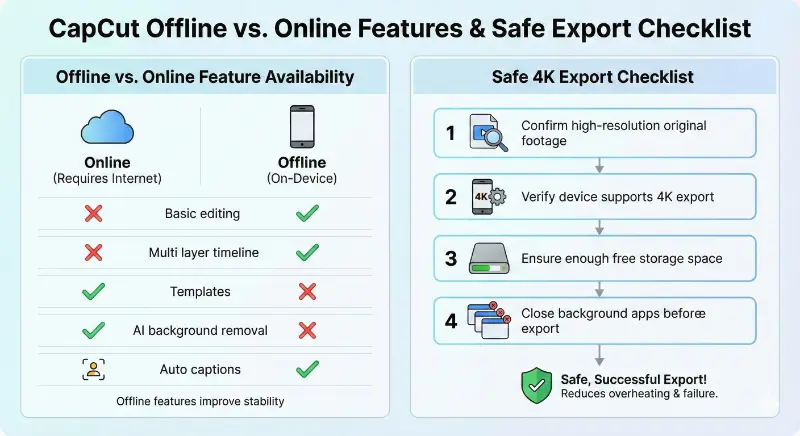
Offline Versus Online Features
Some features work fully offline, while others depend on servers.
| Feature | Works Offline | Best Use |
|---|---|---|
| Basic editing | Yes | All videos |
| Multi layer timeline | Yes | Long videos |
| Templates | No | Short social videos |
| AI background removal | No | Portrait edits |
| Auto captions | Partial | Educational content |
Using offline features improves stability, especially on slower networks.
Device Performance Tips
How to Export High Quality Video in CapCut?
This short guide explains a simple export workflow.
How to Export in 4K Safely
- Confirm original video is high resolution
- Choose 4K only if device supports it
- Ensure enough free storage
- Export without running other apps
This reduces export failure and overheating.
How to Test AI Background Removal Before Full Editing?
Testing saves time and avoids rework.
- Apply background removal to a short clip
- Check edges and motion accuracy
- Adjust lighting or footage if needed
If results are poor, manual editing may be better.
Common Feature Mistakes and How to Avoid Them
Many creators overuse effects, making videos look cluttered.
Simple edits often perform better than complex ones.
CapCut Features Compared to Other Editors
Compared to tools like VN Editor or KineMaster, CapCut balances ease of use with powerful features. It is easier for beginners and faster for short content creation. Advanced motion graphics tools may offer more control, but they require longer learning time.
CapCut works best for creators who want quick results with reasonable customization. Read more about Capcut Latest Version Features.
Frequently Asked Questions
Final Recommendations
CapCut offers powerful features that work best when used with intention. Understanding when to use AI tools, templates, and export options helps creators save time and avoid problems.
For casual content and learning, CapCut provides excellent flexibility. For professional or long term projects, careful testing and stable workflows matter more than unlocked features. Read further in our Safety and Permissions guide.
This feature guide is designed to help you choose tools wisely, edit efficiently, and get consistent results.