
CapCut Best Settings and Use Cases for Different Video Types

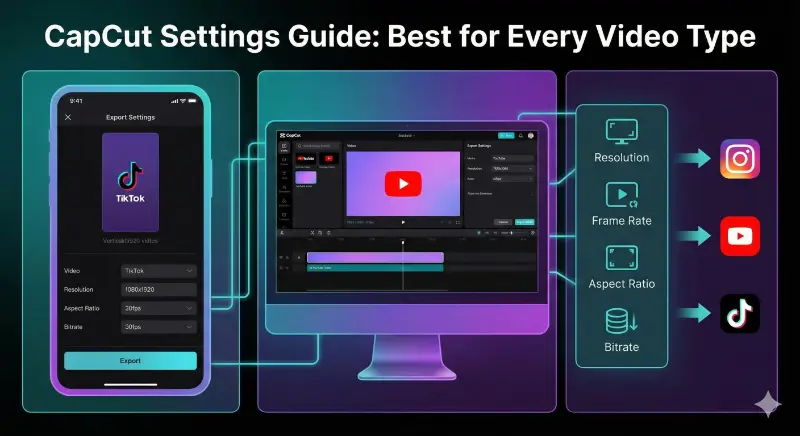
This guide shows which CapCut settings work best for common video types. It explains resolution, frame rate, aspect ratio, export choices, and practical tips for short social videos, long videos, tutorials, and travel clips. Advice is simple and ready to use.
Key official sources used: CapCut features and AI Lab, template guide, auto caption tool, export help, and export quality tips. For further information, you can read the CapCut Pro APK download guide.
How to choose the right settings?
Start with the platform you will upload to. Each platform prefers different resolutions and aspect ratios. Match your project to the final platform before you edit. This avoids wasted time and reduces export problems.
Main settings to check:
- Resolution. Higher resolution looks better but needs more storage and processing power.
- Frame rate. Choose a frame rate that matches the original footage and the platform.
- Aspect ratio. Use vertical formats for reels and Shorts, horizontal for YouTube.
- Bitrate. Higher bitrates keep more detail but increase file size.
If you set these correctly at the start you will avoid export failures and blurry results. You can also read our CapCut installation and fix guide.
Best CapCut settings for TikTok and Instagram Reels
These platforms favor short vertical clips that load fast and play smoothly.
Recommended settings for short social videos:
- Resolution 1080 x 1920 (vertical)
- Frame rate 30 or 60 fps depending on original clip
- Bitrate target 8 to 12 Mbps for 1080p
- Aspect ratio 9:16
- Use templates for fast results but customize fonts and color
Why this works
Most users watch short clips on mobile. 1080 vertical keeps files small and looks sharp on phones. Templates speed editing but adjust text size so captions remain readable on small screens. CapCut templates are designed for this workflow and are updated often.
Common mistakes to avoid
- Exporting 4K for short vertical clips. The platform will compress it and you waste time and storage.
- Using very small text or thin fonts that do not scale on mobile.
Best settings for YouTube long form videos
YouTube viewers often watch on desktop and TV. Use higher quality for archives and client work.
Recommended settings for YouTube uploads:
- Resolution 1920 x 1080 for most videos. Use 4K only if source footage is native 4K.
- Frame rate match original footage, commonly 24, 30 or 60 fps.
- Bitrate follow YouTube recommendations or use 10 to 20 Mbps for 1080p. CapCut guides explain bitrate and export settings for uploads.
- Aspect ratio 16:9 for standard videos
Tips for long videos
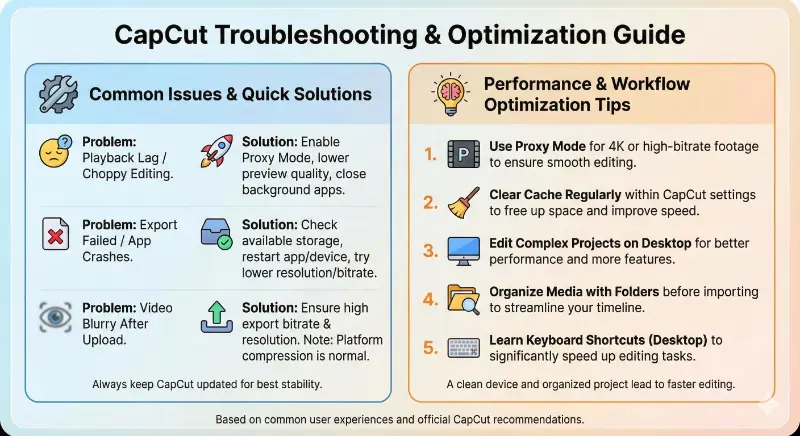
- Use proxy editing when working with 4K or very high bitrate footage to keep playback smooth, then export at full quality. CapCut Desktop supports proxy editing for heavy projects.
- Save and back up projects often.
When to use 4K
Only choose 4K if your footage was recorded in 4K and your audience will watch on large screens. Otherwise 1080p is faster to edit and upload and is visually sufficient for most viewers. Also check device capability because some phones do not show a 4K export option. Official CapCut help notes that 4K availability varies by device and platform.
Best settings for YouTube Shorts
Shorts use vertical format but can be longer than reels.
Recommended Shorts settings:
- Resolution 1080 x 1920
- Frame rate 30 or 60 fps based on the clip
- Bitrate 8 to 12 Mbps
- Keep important content centered for cropping in feeds
Shorts tip
Edit for the platform. Even if you shot horizontally, crop and reframe clips so the subject stays visible. Use keyframes to reposition footage for the vertical frame.
Settings for educational and tutorial videos
Educational videos need clear audio and readable captions.
Recommended settings for tutorials:
- Resolution 1080p to 4K depending on screen detail needs
- Frame rate 30 fps is usually enough for talking head and screen capture
- Use auto captions and then proofread them. CapCut’s auto caption tool is helpful but not flawless, so review and edit the text for accuracy.
Audio tips
Record voiceovers clearly with low background noise. Use CapCut audio tools to normalize levels and reduce noise. Export SRT or burn captions into the video for platforms that need subtitles.
Settings for travel and personal videos
Travel clips often mix landscape and portrait shots. Focus on color and smooth motion.
Recommended settings for travel videos:
- Resolution 1080p for social uploads, 4K if you plan to archive or edit on desktop later
- Frame rate 30 or 60 fps for action footage and slow motion
- Use gentle color correction and stabilization if needed
Stabilization and color grading
Use built in stabilization for handheld footage and apply mild color correction rather than heavy filters. Heavy grading can increase export time and reduce performance on phones.
Performance and device tips
Not every device can handle every setting. If you get lag or export failure follow these steps:
- Lower preview quality during editing to reduce lag.
- Close background apps.
- Clear cache if storage is low.
- Reduce export resolution to 1080p if 4K fails.
- For big projects, edit on desktop or use proxy editing to keep the timeline smooth.
CapCut’s documentation explains that export options and feature availability depend on device hardware, app version, and platform. If you do not see a 4K export option, your device or app version may not support it.
Features map
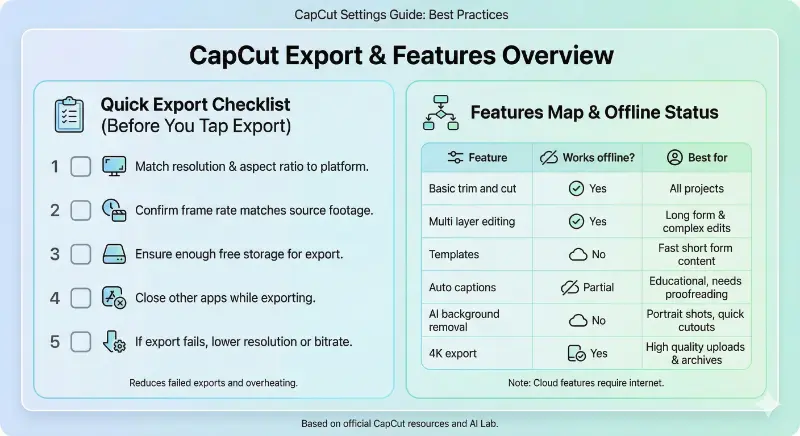
This small table helps choose a feature and shows whether it needs internet.
| Feature | Works offline | Best for |
|---|---|---|
| Basic trim and cut | Yes | All projects |
| Multi layer editing | Yes | Long form and complex edits |
| Templates | No | Fast short form content |
| Auto captions | Partial | Educational content, needs proofreading |
| AI background removal | No | Portrait shots, quick cutouts |
| 4K export | Yes if device supports | High quality uploads and archives |
Official CapCut pages note that tools like templates and many AI features rely on cloud processing and internet access, while basic editing runs locally. You can also check our article on CapCut features explained.
Quick export checklist
Before you tap export check this list:
- Match resolution and aspect ratio to the platform.
- Confirm frame rate matches your source footage.
- Ensure enough free storage for the export.
- Close other apps while exporting.
- If export fails, lower resolution or bitrate and try again.
These steps reduce failed exports and overheating.
Common mistakes and how to avoid them
- Exporting at 4K for short social posts. Solution: Use 1080p for mobile platforms and save 4K only for archival or desktop uploads.
- Relying solely on auto captions. Solution: Edit auto captions for accuracy, especially names and technical terms.
- Overusing templates without branding. Solution: Customize text, fonts, and timing so the content matches your style.
Frequently Asked Questions
Final recommendations
Pick settings that match the platform and the source footage. Test AI tools and templates on short clips before committing to a full project. Use proxy editing and lower preview quality when working with large files. For professional or client work, prefer stable workflows and back up projects often.