How to Get the CapCut 3D Zoom Effect (And Fix When It’s Not Showing)

Direct Answer: Where to Find the 3D Zoom Effect in CapCut
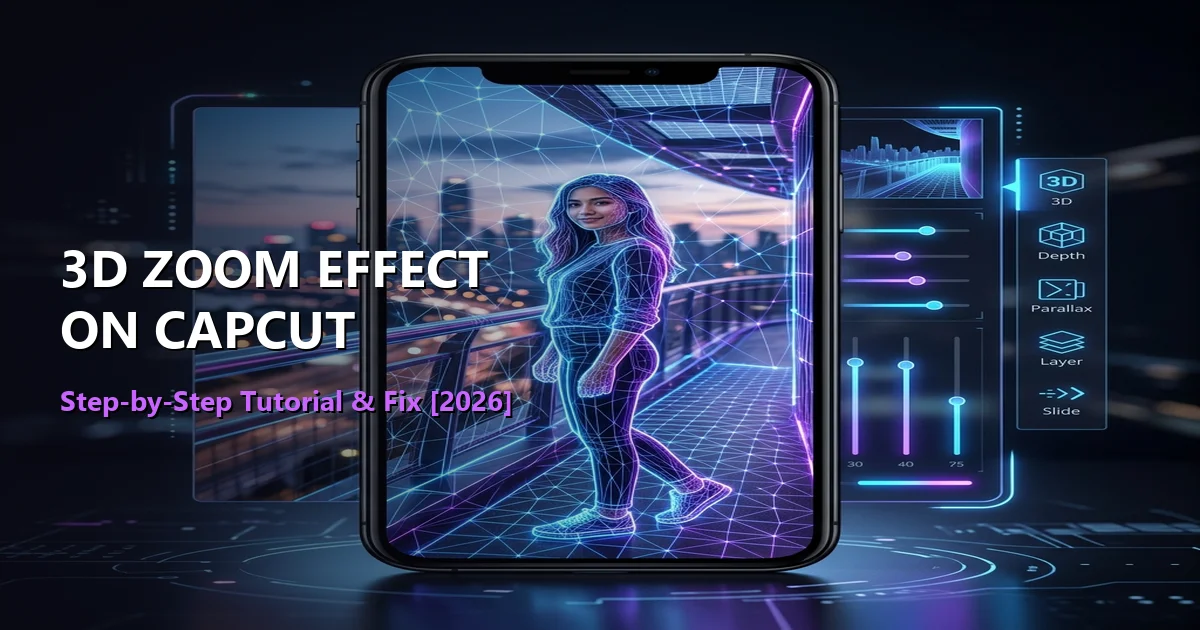
To access the 3D Zoom effect in CapCut, you must import and select a **static photo clip** on your timeline. The 3D Zoom tool is not categorized under the standard Video Effects or Filters menu; instead, it is located within the “Style” tab. Because the style uses a neural network to identify facial features and calculate spatial depth mapping, the option will remain greyed out or invisible if you select a video file or a photo that does not contain a recognizable subject. Open the Style menu, swipe to find “3D Zoom” or “3D Zoom Pro”, and tap to apply.
Key Takeaways
- Photo Only: The 3D Zoom effect can only be applied to static image files (JPEG, PNG, WebP), not active video clips.
- Menu Location: It resides in the Style tab on the timeline editor, not the generic Effects tab.
- Face Recognition: The underlying algorithm requires a recognizable subject (human face, pet, or distinct object) to create the parallax depth layers.
- Version Checks: If the Style menu is missing, you may be using an outdated version or a restricted regional package. Check compatibilities in our CapCut Old Versions Safe Download Portal.
Step-by-Step Guide: How to Apply the 3D Zoom Effect
Recreating the trending 3D depth-parallax photo effect is simple if you follow this sequence:
- Start a New Project: Open CapCut and tap New Project. Select the photos you want to edit from your device gallery.
- Adjust Clip Duration: For optimal timing, crop each photo clip on your timeline to a duration of 1.0 to 1.5 seconds.
- Select the Clip: Tap directly on the photo clip in your timeline. A white border will appear around the selection.
- Locate the Style Menu: Slide the bottom toolbar menu to the right and tap on the Style icon (looks like a square with sparkles).
- Select 3D Zoom: In the Style list, tap on either 3D Zoom or 3D Zoom Pro. The app will show a “Generating” progress bar as the AI processes the depth layers.
- Preview and Export: Once generation completes, tap the checkmark. Press play to review the smooth camera parallax slide, then tap the export arrow. For optimal resolution, configure your settings according to our CapCut Best Settings Guide.
How to Recreate the 3D Zoom Photo Trend (Tips for Music Sync)
To make your 3D Zoom video go viral on TikTok or Instagram Reels, you must synchronize the visual transitions with the musical beats. Here is the professional editing workflow:
- Select an Upbeat Audio Track: Choose a track with distinct, heavy bass drops or rhythmic snare hits. You can import trending tracks directly from TikTok within CapCut.
- Use the “Match Cut” (Beats) Feature: Tap on your audio track on the timeline, select **Beats**, and tap **Auto-Generate**. This will place small yellow dots on the timeline representing each beat drop.
- Align Clip Ends: Drag the edges of your photo clips so they snap precisely onto the yellow beat markers. This creates an extremely satisfying transition where the 3D zoom slides on beat.
- Add Flash Transitions: Insert a brief white overlay flash (0.1 seconds long) at the start of each photo clip to accentuate the depth pop.
Why is the CapCut 3D Zoom Style Not Showing? (Troubleshooting)
If you are struggling to find or apply the effect, it is likely due to one of these common user mistakes:
- 1. You Selected a Video Clip: The 3D mapping algorithm cannot process moving pixels frame-by-frame on mobile hardware. The “Style” menu will be completely greyed out or return an error if a video clip is active. Convert your video frame into a still image screenshot before importing it.
- 2. No Recognizable Subject Found: If your photo is a landscape, abstract texture, or low-contrast background, the AI face-and-depth detector will fail, returning a “Cannot apply this style” warning. Use photos with clear lighting and a distinct subject in the foreground.
- 3. Missing Style Icon: If the Style icon is completely absent from your timeline toolbar, your application version is outdated or restricted. Try clearing your cache directories as shown in our CapCut Installation and Error Fix Playbook.
3D Zoom vs. 3D Zoom Pro: What is the Difference?
CapCut offers two variations of the parallax depth effect:
| Feature Metric | 3D Zoom (Standard) | 3D Zoom Pro |
|---|---|---|
| Parallax Speed | Fast camera slide | Smooth, cinematic slow panning |
| Depth Layers | Separates background and foreground | Creates intermediate mid-ground depth layers |
| Processing Time | Quick (2-5 seconds) | Longer (5-15 seconds depending on hardware) |
| Best Used For | Upbeat montage transitions | Slower, emotional storytelling intros |
Alternative: Manual 3D Zoom Using Keyframes
If your device is too old to run CapCut’s AI Style tool, you can manually simulate a 3D Zoom using standard keyframes. This bypasses all RAM limits:
- Select your clip and add a keyframe at the very beginning (set scale to 100%).
- Add a second keyframe at the end of the clip and zoom in slightly (set scale to 115%).
- Slide the timeline to the middle, apply a subtle position offset shift, and adjust the **Keyframe Curve** to “Ease Out” for a organic, non-linear slide.
System Requirements for AI Style Rendering
Because spatial rendering consumes significant RAM and processor cycles, older devices may crash or freeze during the “Generating” stage. Review these requirements:
- Android: Android OS 6.0+; minimum 3GB of RAM. If you are experiencing memory issues, we recommend rolling back to a stable build from our Old Versions list.
- iOS: iOS 12.0+; compatible with iPhone 8 or newer models.
- PC: Ensure GPU hardware acceleration is checked in your system settings. Learn more in our CapCut PC Download Guide.
Frequently Asked Questions
Why does the 3D Zoom generation bar freeze at 99%?
A freeze at 99% usually indicates a device memory overflow (RAM exhaustion) or a temporary server timeout. Try closing all background applications, clearing your cache, or switching network connections.
Is the 3D Zoom effect free to use in CapCut?
Yes. Both the standard 3D Zoom and 3D Zoom Pro styles are free, provided you are using an official, up-to-date version of the application.
Can I apply 3D Zoom to a text layer or stickers?
No. The depth-mapping engine only operates on flat image formats (photos). Text and graphic overlays must be animated separately using keyframes.
Conclusion
Recreating the 3D Zoom trend on CapCut is one of the easiest ways to elevate your slideshow montages. By utilizing clear static photos, keeping your application cache clean, and selecting the right Style tab, you can render professional-quality depth parallax clips instantly. Keep editing, and explore other creative styling tools in CapCut to make your content pop!
Quality Checklist Before You Export
- Keep key text inside safe margins so it is not cropped on mobile screens.
- Check captions for timing and readability; short lines work best.
- Listen with headphones and reduce background music volume under voice tracks.
- Export one test clip, review on your phone, then finalize the full batch export.