Top 10 Velocity & Slow-Mo CapCut Templates (Direct Links)

Direct Answer: What are Velocity Templates?
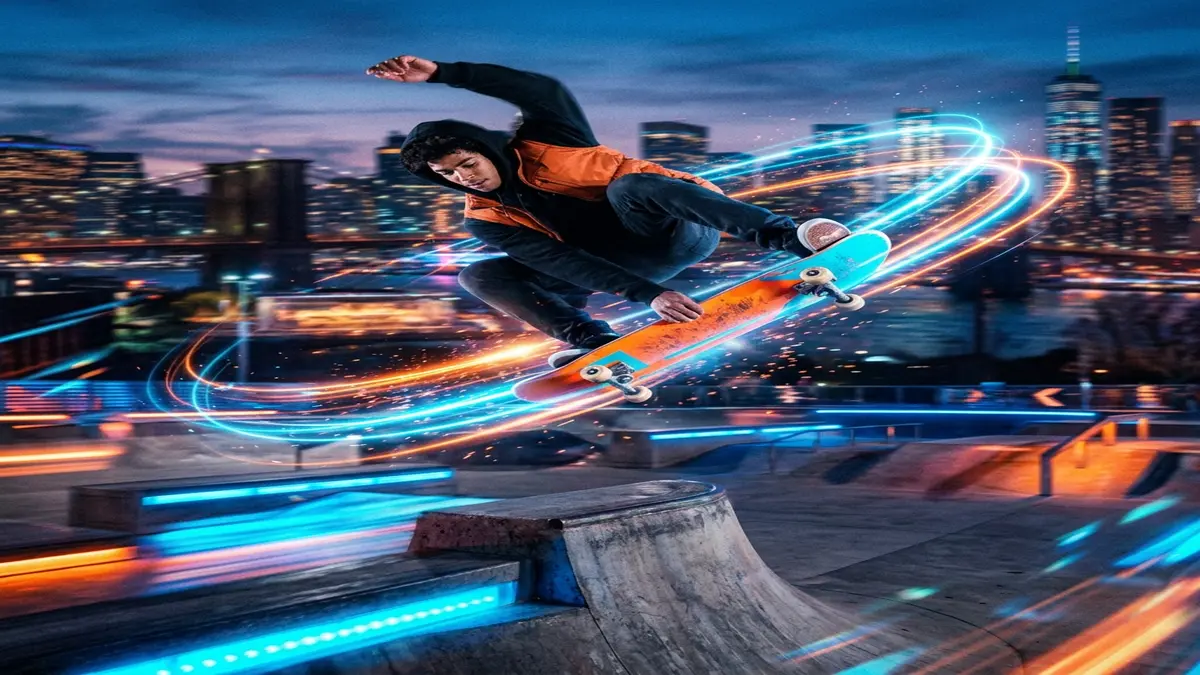
In 2026, Velocity Edits dominate TikTok and Instagram Reels. A velocity edit combines high-speed, beat-synced cuts with buttery smooth, Optical Flow slow-motion. Instead of manually keyframing speed curves (which can take hours), you can use CapCut Velocity Templates to apply complex time-remapping directly to your raw footage with a single click. Below are the Top 10 trending Velocity and Slow-Mo templates, complete with direct deep links that will open straight into your CapCut app.
Top 10 CapCut Velocity Templates (Direct Deep Links)
1. Smooth Optical Flow Velocity
This is the industry standard for gaming montages and gym transformation videos. It uses CapCut’s native Optical Flow algorithm to generate artificial frames, ensuring the slow-motion segments do not stutter even if your source video was shot in 30fps.
👉 Use “Smooth Optical Flow Velocity” Template
2. The “ICAL” Beat Sync Velocity
Made famous by the “Healing Thailand” trend, this template features heavy bass drops synced perfectly with extreme speed ramping and a subtle flash effect on the beat hit.
👉 Use “ICAL Beat Sync” Template
3. Auto-Velocity Flash Warning
Ideal for fashion and outfit transitions. It rapidly switches between 2x speed and 0.5x speed while pulsing a white flash overlay. Warning: Contains rapidly flashing images.
👉 Use “Auto-Velocity Flash” Template
4. Cinematic Slow-Mo Fade
Perfect for drone footage, travel vlogs, or nature shots. This template avoids aggressive cuts and instead uses long, sweeping Bézier curve speed ramps with a moody, desaturated color grade.
👉 Use “Cinematic Slow-Mo Fade” Template
5. Y2K Glitch Velocity
This template combines aggressive speed-ramping with retro Y2K digital glitch transitions and heavy chromatic aberration. Extremely popular for streetwear showcases.
👉 Use “Y2K Glitch Velocity” Template
6. Anime Edit / AMV Velocity
Designed specifically for Anime Music Videos (AMVs), this template expects fast-paced animation clips and syncs them to high-BPM trap music using rapid 4-frame cuts.
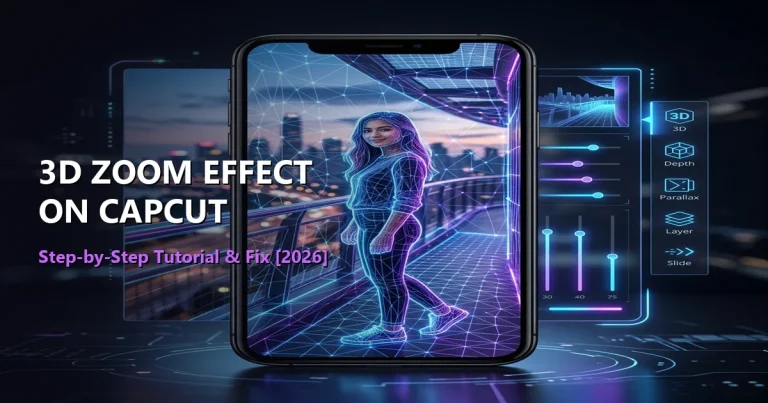
7. 3D Zoom Velocity
This template combines CapCut’s famous “3D Zoom Pro” effect with a velocity curve. It artificially isolates the subject from the background, slowing them down while the background zooms past.
👉 Use “3D Zoom Velocity” Template
8. Hyper-Lapse Travel Velocity
Perfect for long clips (like walking through a city). It speeds the footage up to 10x speed, then abruptly slows down to 0.2x speed when the user smiles or hits a pose.
👉 Use “Hyper-Lapse Travel” Template
9. Soft Blur Slow-Mo
A highly aesthetic, low-contrast template that applies a heavy Gaussian blur during the fast-forward sections, which sharply snaps into crystal-clear focus during the slow-motion drops.
👉 Use “Soft Blur Slow-Mo” Template
10. The “Nightcore” Extreme Velocity
Built for sped-up “Nightcore” audio tracks, this template is relentless. It features constant motion, heavy shake effects, and micro-zooms synced to high-frequency hi-hats.
👉 Use “Nightcore Extreme” Template
How to Use These Templates Without Errors
Because these templates manipulate the frame rate of your video, using them incorrectly can result in choppy, ruined footage. Follow these rules:
- Use 60fps Source Video: Velocity templates drastically slow down your footage. If you provide a 30fps video, slowing it down by 50% drops it to 15fps (which looks like a slideshow). Always shoot and import 60fps video.
- Enable Optical Flow: If the template offers a “Smooth Slow-Mo” toggle before exporting, always ensure it is set to “Optical Flow” rather than “Frame Blending.”
- Remove the Watermark: To ensure the “CapCut” logo does not appear at the end of your viral edit, either export directly to TikTok or use the CapCut Pro APK.
Creator Tip: Want to make your own templates and get paid when people use them? Read our guide on Joining the CapCut Creator Program.